Build a Custom Integration: SchedulifyX JavaScript SDK
SchedulifyX Team · April 25, 2026
Learn how to build a powerful custom integration using the SchedulifyX JavaScript SDK. Automate social media scheduling with our step-by-step API tutorial.
In today's fast-paced digital ecosystem, managing social media presences across multiple platforms is no longer a manual task—it is a highly automated, data-driven operation. For digital agencies, enterprise marketing teams, and SaaS platforms looking to offer embedded social media features, out-of-the-box solutions sometimes fall short of specific, complex workflow requirements. This is exactly where building a custom integration becomes invaluable.
By leveraging the SchedulifyX JavaScript SDK, developers can bypass the friction of raw API calls and seamlessly integrate our powerful AI-driven scheduling engine directly into their own applications. Whether you are building an internal dashboard, a specialized client portal, or a completely new product that requires social media publishing capabilities, our SDK provides the building blocks you need.
In this comprehensive tutorial, we will walk you through everything you need to know about building a custom integration with the SchedulifyX JavaScript SDK. From initial setup and authentication to advanced scheduling, webhook handling, and best practices, this guide will equip you with the knowledge to harness the full power of the SchedulifyX API.
Why Build a Custom Integration?

Before diving into the code, it is important to understand the strategic value of building a custom integration. While SchedulifyX offers a robust, feature-rich web platform, there are numerous scenarios where a custom-built solution is superior.
1. Tailored Workflows
Every marketing team operates differently. A custom integration allows you to map the social media scheduling process directly to your internal business logic. For example, you might require a multi-tiered approval process involving legal and compliance teams before a tweet can be published. By using the SchedulifyX API, you can build this exact workflow into your internal tools.
2. White-Labeling and Embedded Experiences
If you are a SaaS company offering a CRM, e-commerce platform, or industry-specific management tool, your users likely want to manage their social media without leaving your application. A custom integration allows you to embed SchedulifyX's scheduling capabilities directly into your UI, providing a seamless, white-labeled experience for your customers.
3. Automated Content Generation
Imagine an e-commerce store that automatically generates and schedules social media posts whenever a new product is added to the inventory. By connecting your inventory database to the SchedulifyX JavaScript SDK, you can completely automate this process, saving hundreds of hours of manual work.
Understanding the SchedulifyX JavaScript SDK
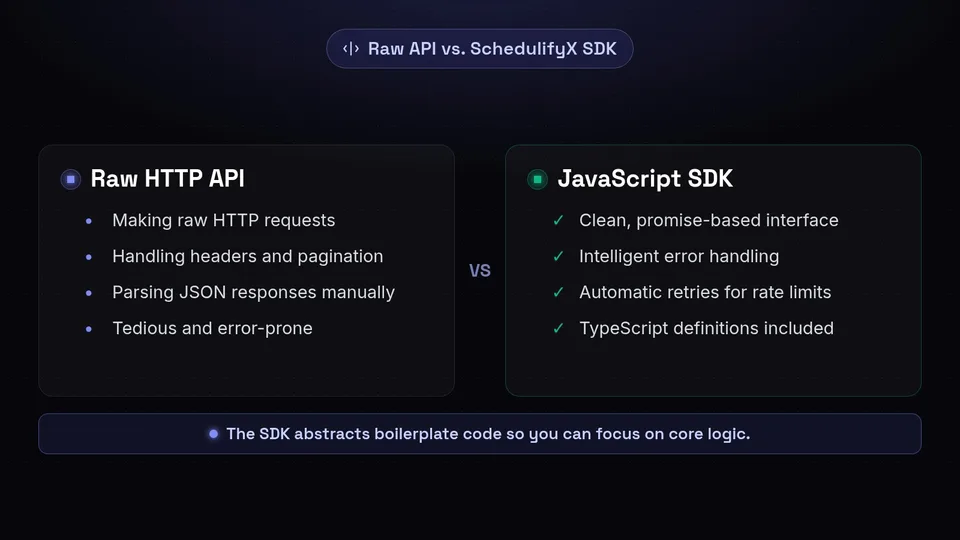
The SchedulifyX API is a RESTful interface that allows you to interact programmatically with your SchedulifyX account. However, making raw HTTP requests, handling headers, managing pagination, and parsing JSON responses can become tedious and error-prone.
The SchedulifyX JavaScript SDK acts as a wrapper around our API. It provides a clean, promise-based interface, intelligent error handling, automatic retries for rate-limited requests, and TypeScript definitions for enhanced developer experience. It abstracts away the boilerplate code, allowing you to focus on building your application's core logic.
Whether you are building a backend service in Node.js, a serverless function on AWS Lambda, or a frontend application using React or Vue, the javascript sdk is designed to be lightweight, performant, and easy to use.
Prerequisites for Using the SDK
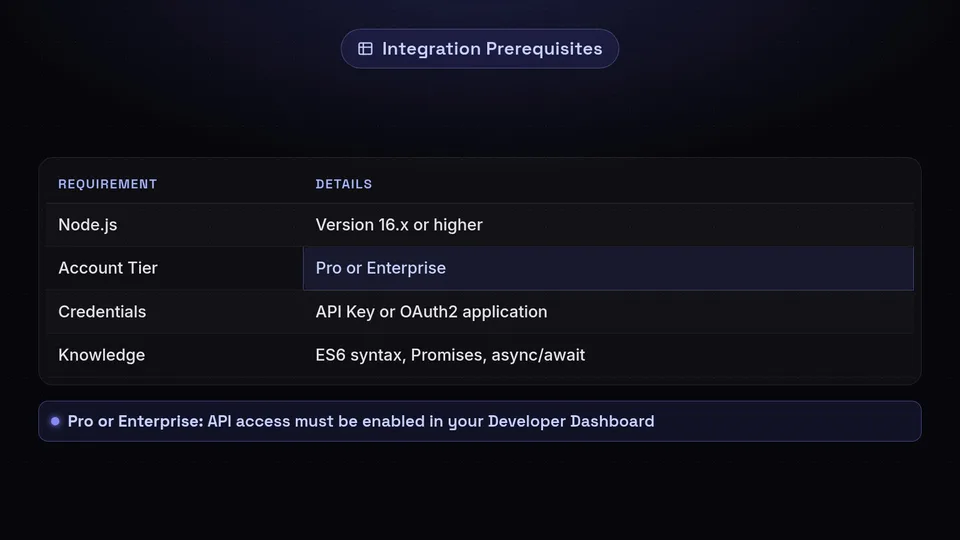
Before we begin writing code, ensure you have the following prerequisites in place:
- Node.js Environment: You will need Node.js version 16.x or higher installed on your machine.
- SchedulifyX Account: An active SchedulifyX account (Pro or Enterprise tier) with API access enabled.
- API Credentials: You must generate an API Key or set up an OAuth2 application within your SchedulifyX Developer Dashboard.
- Basic JavaScript/TypeScript Knowledge: Familiarity with ES6 syntax, Promises, and async/await patterns is highly recommended.
Once you have gathered these prerequisites, you are ready to start building your custom integration.
Step 1: Installing and Initializing the SDK

The first step in building your custom integration is to install the SchedulifyX JavaScript SDK into your project. The SDK is available via the npm registry.
Open your terminal, navigate to your project directory, and run the following command:
npm install @schedulifyx/sdkIf you prefer using Yarn or pnpm, you can use the respective commands:
yarn add @schedulifyx/sdk
pnpm add @schedulifyx/sdk
Initializing the Client
Once the package is installed, you need to import and initialize the SchedulifyX client. Create a new file named schedulifyx-client.js (or .ts if you are using TypeScript) and add the following code:
const { SchedulifyXClient } = require('@schedulifyx/sdk');

// Initialize the client with your API key
const client = new SchedulifyXClient({
  apiKey: process.env.SCHEDULIFYX_API_KEY,
  environment: 'production' // Use 'sandbox' for testing
});

module.exports = client;
Important Security Note: Never hardcode your API keys directly into your source code. Always use environment variables (e.g., a .env file) to manage sensitive credentials. If you are using the SDK in a client-side frontend application, you must use OAuth2 authentication instead of exposing a static API key.
Step 2: Authenticating Your Custom Integration
Authentication is a critical component of any API integration. SchedulifyX supports two primary methods of authentication, depending on the architecture of your application.
Method 1: Personal Access Tokens (API Keys)
If you are building an internal tool, an automated script, or a backend service that only needs to access your own SchedulifyX account, using a Personal Access Token (API Key) is the simplest approach. This is what we demonstrated in the initialization step above. You can generate these keys in the Developer Settings of your SchedulifyX dashboard.
Method 2: OAuth 2.0
If you are building a public integration or a SaaS platform where your users need to connect their own SchedulifyX accounts to your app, you must use OAuth 2.0. This ensures that you never handle your users' passwords and that they can revoke access at any time.
To implement OAuth 2.0 with the SchedulifyX JavaScript SDK, you will first redirect the user to the SchedulifyX authorization URL. Once they approve the connection, SchedulifyX will redirect them back to your application with an authorization code. You then exchange this code for an access token.
// Step 1: Generate the authorization URL
const authUrl = client.auth.getAuthorizationUrl({
  clientId: process.env.CLIENT_ID,
  redirectUri: 'https://yourapp.com/callback',
  scopes: ['profiles:read', 'posts:write']
});
// Redirect the user to authUrl...

// Step 2: Exchange the code for a token (in your callback route)
const tokenResponse = await client.auth.exchangeCode({
  clientId: process.env.CLIENT_ID,
  clientSecret: process.env.CLIENT_SECRET,
  code: req.query.code,
  redirectUri: 'https://yourapp.com/callback'
});

// Initialize a new client for this specific user
const userClient = new SchedulifyXClient({
  accessToken: tokenResponse.accessToken
});
By using OAuth, your custom integration adheres to industry-standard security practices while providing a frictionless onboarding experience for your users.
Step 3: Fetching and Managing Social Profiles
Before you can schedule a post, you need to know which social media profiles are available. SchedulifyX supports a wide range of platforms, including X (formerly Twitter), LinkedIn, Facebook, Instagram, TikTok, and Pinterest.
Using the schedulifyx sdk, retrieving the list of connected profiles is incredibly straightforward.
async function getAvailableProfiles() {
  try {
    const profiles = await client.profiles.list();

    console.log(`Found ${profiles.data.length} connected profiles.`);

    profiles.data.forEach(profile => {
      console.log(`- ${profile.name} (${profile.platform}) - ID: ${profile.id}`);
    });

    return profiles.data;
  } catch (error) {
    console.error('Failed to fetch profiles:', error.message);
  }
}
Handling Pagination
If an account has dozens or hundreds of connected profiles (common in agency settings), the API will return paginated results. The SDK makes handling pagination easy by providing an auto-paginating iterator.
async function getAllProfiles() {
  const allProfiles = [];
  for await (const profile of client.profiles.listAutoPaging()) {
    allProfiles.push(profile);
  }
  return allProfiles;
}
This abstraction is one of the key benefits of using the SDK over raw API calls. You don't need to manually check for next_cursor tokens or manage multiple HTTP requests; the SDK handles it all under the hood.
Step 4: Creating and Scheduling Content
The core functionality of any social media integration is the ability to publish and schedule content. The SchedulifyX API provides a highly flexible endpoint for creating posts, allowing you to specify text, attach media, tag users, and set precise publishing times.
Scheduling a Simple Text Post
Let's start by scheduling a simple text post to a specific profile.
async function scheduleTextPost(profileId, text, scheduledTime) {
  try {
    const post = await client.posts.create({
      profileIds: [profileId],
      content: {
        text: text
      },
      schedule: {
        publishAt: scheduledTime // ISO 8601 formatted date string
      }
    });

    console.log(`Post scheduled successfully! Post ID: ${post.id}`);
    return post;
  } catch (error) {
    console.error('Error scheduling post:', error.details);
  }
}
Uploading and Attaching Media
Social media is highly visual. To attach images or videos to your posts, you must first upload the media to the SchedulifyX servers. The SDK handles the multipart form data upload process for you.
const fs = require('fs');

async function scheduleMediaPost(profileId, text, imagePath, scheduledTime) {
  try {
    // 1. Upload the media file
    const mediaStream = fs.createReadStream(imagePath);
    const uploadedMedia = await client.media.upload({
      file: mediaStream,
      purpose: 'post_attachment'
    });

    // 2. Create the post with the media ID
    const post = await client.posts.create({
      profileIds: [profileId],
      content: {
        text: text,
        mediaIds: [uploadedMedia.id]
      },
      schedule: {
        publishAt: scheduledTime
      }
    });

    console.log('Media post scheduled successfully!');
  } catch (error) {
    console.error('Error scheduling media post:', error);
  }
}
Platform-Specific Customizations
Different social networks have different features. For example, a LinkedIn post might need a specific article link, while an Instagram post might require a first comment for hashtags. The SchedulifyX API allows you to pass platform-specific overrides in your payload.
const post = await client.posts.create({
  profileIds: [twitterProfileId, linkedinProfileId],
  content: {
    text: "Check out our new custom integration tutorial!"
  },
  overrides: {
    linkedin: {
      text: "Professionals, check out our new custom integration tutorial! #Developer #API"
    },
    twitter: {
      thread: [
        "1/ Check out our new custom integration tutorial!",
        "2/ We cover the JavaScript SDK, Webhooks, and more!"
      ]
    }
  },
  schedule: {
    publishAt: "2026-05-01T14:00:00Z"
  }
});
This level of granularity ensures that your custom integration can take full advantage of each platform's unique capabilities without needing to manage separate API integrations for Twitter, LinkedIn, and Facebook.
Step 5: Handling Webhooks and Real-Time Updates
When you schedule a post for the future, you need a way to know if it was published successfully or if it failed (e.g., due to an expired social media token). Polling the API continuously is inefficient and eats up your rate limits. The solution is to use Webhooks.
SchedulifyX can send real-time HTTP POST requests to your server whenever a significant event occurs. To handle these in your custom integration, you need to set up an endpoint on your server to receive the webhook payload.
Setting up an Express Webhook Receiver
Here is an example of how to securely receive and process webhooks using Node.js and Express:
const express = require('express');
const crypto = require('crypto');
const app = express();

// Use body-parser to get the raw body for signature verification
app.use(express.json({ verify: (req, res, buf) => { req.rawBody = buf } }));

const WEBHOOK_SECRET = process.env.SCHEDULIFYX_WEBHOOK_SECRET;

app.post('/webhooks/schedulifyx', (req, res) => {
  const signature = req.headers['x-schedulifyx-signature'];

  // Verify the webhook signature to ensure it came from SchedulifyX
  const expectedSignature = crypto
    .createHmac('sha256', WEBHOOK_SECRET)
    .update(req.rawBody)
    .digest('hex');

  if (signature !== expectedSignature) {
    return res.status(401).send('Invalid signature');
  }

  const event = req.body;

  // Handle different event types
  switch (event.type) {
    case 'post.published':
      console.log(`Post ${event.data.postId} was successfully published!`);
      // Update your database here
      break;
    case 'post.failed':
      console.error(`Post ${event.data.postId} failed: ${event.data.reason}`);
      // Alert the user here
      break;
    default:
      console.log(`Unhandled event type: ${event.type}`);
  }

  // Always return a 200 OK quickly to prevent retries
  res.status(200).send('Webhook received');
});

app.listen(3000, () => console.log('Webhook server listening on port 3000'));
By verifying the cryptographic signature, you ensure that malicious actors cannot spoof webhook events and corrupt your application's state.
Advanced Features of the SchedulifyX API
Beyond basic scheduling, the SchedulifyX JavaScript SDK exposes several advanced features that can take your custom integration to the next level.
AI Content Generation
SchedulifyX is an AI-powered platform. You can leverage our AI endpoints to generate post ideas, optimize copy for specific platforms, or translate content automatically. By calling client.ai.generate(), you can pass a simple prompt and receive platform-optimized social media copy in milliseconds. This is perfect for building "Magic Write" buttons directly into your custom CMS.
Analytics and Reporting
Proving ROI is crucial for social media marketing. The SDK provides access to detailed analytics. You can pull engagement metrics (likes, shares, comments, clicks) for individual posts or aggregate data across entire profiles over specific timeframes. Use client.analytics.getMetrics() to fetch this data and render beautiful, custom charts in your own dashboards using libraries like Chart.js or D3.
Team Collaboration and Approval Workflows
If you are building an enterprise tool, you can programmatically manage user roles, invite team members, and move posts through draft, pending review, and approved states. The SDK's client.workflows namespace provides all the methods needed to build complex, multi-user approval chains.
Best Practices for Your Custom Integration
To ensure your custom integration is robust, scalable, and resilient, you should adhere to the following best practices when working with the SchedulifyX api.
1. Respect API Rate Limits
Like all modern APIs, SchedulifyX enforces rate limits to ensure platform stability. If you exceed these limits, the API will return an HTTP 429 Too Many Requests error. The JavaScript SDK automatically handles rate limiting by implementing exponential backoff. However, you should still architect your application to avoid unnecessary API calls. Cache profile data locally and use webhooks instead of polling.
2. Implement Robust Error Handling
Network requests can fail for numerous reasons. Always wrap your SDK calls in try/catch blocks. The SDK throws structured error objects that include an error code, a human-readable message, and a details object. Log these errors thoroughly to make debugging easier.
Pro Tip: Use the
error.codeproperty to programmatically determine how to respond to an error, such as prompting the user to re-authenticate if you receive atoken_expirederror.
3. Keep the SDK Updated
We are constantly adding new features, supporting new social networks, and improving the performance of the SchedulifyX JavaScript SDK. Make sure to regularly update the package in your package.json to take advantage of the latest capabilities and security patches.
4. Secure Your Credentials
We mentioned this earlier, but it bears repeating: never expose your API keys or client secrets in public repositories or client-side code. If you are building a Single Page Application (SPA), ensure all API interactions are routed through a secure backend proxy server that holds the credentials securely.
Conclusion
Building a custom integration with the SchedulifyX JavaScript SDK opens up a world of possibilities for automating and optimizing your social media workflows. By leveraging our robust API, you can build tailored solutions that fit your exact business needs, embed powerful scheduling features into your SaaS platform, and harness the power of AI-driven content generation.
We have covered everything from initial installation and authentication to advanced scheduling, media handling, and webhook processing. With these tools in your developer toolkit, you are well-equipped to build scalable, professional-grade social media integrations.
Ready to start building? Sign up for a SchedulifyX developer account today, grab your API keys, and explore our comprehensive documentation. We can't wait to see what you build!