Google Workspace SSO for SchedulifyX: Enterprise Guide
SchedulifyX Team · May 5, 2026
Secure your social media operations by connecting Google Workspace SSO to SchedulifyX. Follow our step-by-step enterprise guide for setup and best practices.
In today's hyper-connected digital landscape, a company's social media presence is often its most visible and valuable asset. However, with great visibility comes significant risk. Managing access to corporate social media accounts using traditional usernames and passwords is a dangerous game. Password fatigue, credential sharing, and delayed offboarding of former employees create massive security vulnerabilities. This is where enterprise SSO (Single Sign-On) becomes a non-negotiable requirement for modern businesses.
By integrating Google Workspace SSO with your social media management platform, you can centralize identity management, enforce strict security policies, and streamline access for your marketing teams. In this comprehensive tutorial, we will walk you through the exact process of connecting Google Workspace SSO to SchedulifyX, our AI-powered social media scheduling platform designed for enterprise scale.
What is Enterprise Single Sign-On (SSO)?
Enterprise Single Sign-On (SSO) is an authentication method that enables users to securely authenticate with multiple applications and websites by logging in only once—with just one set of credentials. Instead of requiring your social media managers, content creators, and marketing directors to remember separate passwords for their email, CRM, and SchedulifyX accounts, SSO allows them to use their primary corporate identity to access everything.
The Architecture of SSO: SAML 2.0
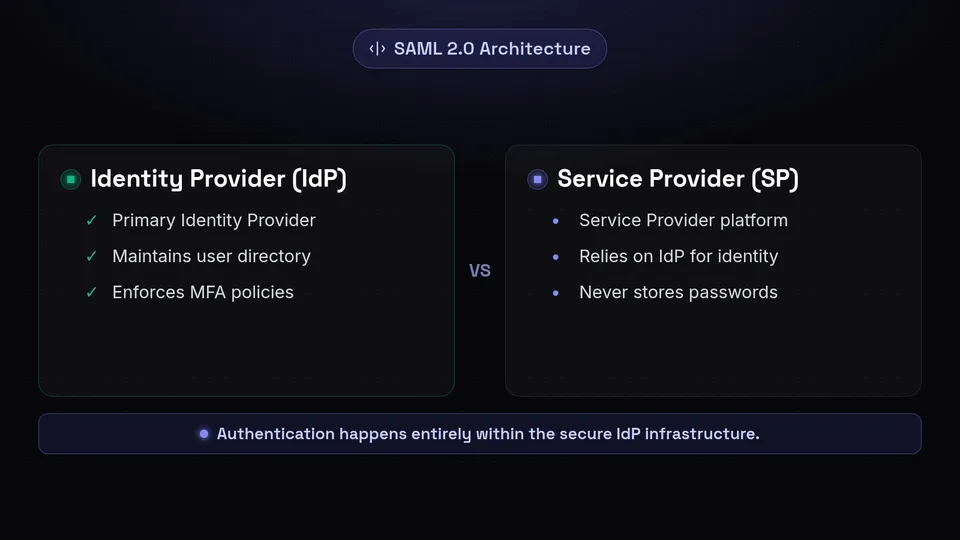
When connecting Google Workspace to enterprise applications, the underlying technology is typically SAML 2.0 (Security Assertion Markup Language). SAML is an open standard that allows identity providers (IdP) to pass authorization credentials to service providers (SP).
- Identity Provider (IdP): In this scenario, Google Workspace acts as the IdP. It maintains the user directory, handles the actual login process, and enforces authentication policies like Multi-Factor Authentication (MFA).
- Service Provider (SP): SchedulifyX acts as the SP. It relies on Google Workspace to verify the user's identity. Once Google confirms the user is who they say they are, SchedulifyX grants access to the platform based on the user's assigned role.
This separation of duties means that SchedulifyX never stores or even sees your employees' passwords. The authentication happens entirely within Google's secure infrastructure, and SchedulifyX merely receives a cryptographically signed token confirming the successful login.
The Business Value of Google Workspace SSO
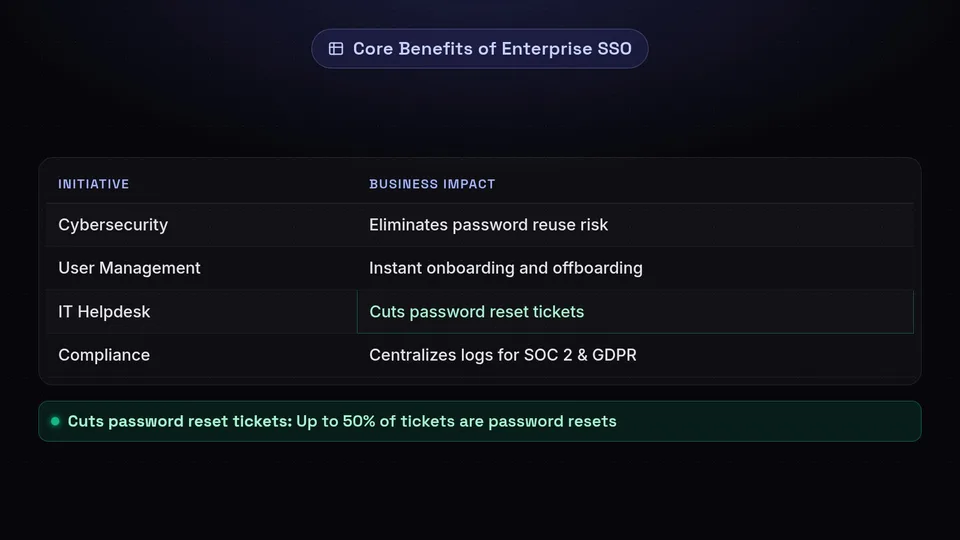
Implementing google workspace sso is not just an IT initiative; it is a strategic business decision that impacts security, productivity, and the bottom line. Let's explore the core benefits of deploying enterprise SSO across your organization.
1. Enhanced Cybersecurity Posture
Human error remains the leading cause of cybersecurity breaches. By eliminating the need for users to create and remember multiple passwords, you eliminate the risk of password reuse, weak passwords, and sticky notes hidden under keyboards. Furthermore, routing all authentication through Google Workspace allows your IT department to enforce robust security policies, such as mandatory hardware security keys (like YubiKeys) or strict password complexity rules, across all connected applications simultaneously.
2. Instantaneous Onboarding and Offboarding
When a new social media manager joins your team, granting them access to their necessary tools should take minutes, not days. With SSO, assigning the user to the appropriate Organizational Unit (OU) or group in Google Workspace automatically provisions their access to SchedulifyX. Conversely—and more importantly—when an employee leaves the company, revoking their Google Workspace access instantly severs their connection to SchedulifyX. This eliminates the risk of disgruntled former employees retaining access to your brand's social media channels.
3. Reduction in IT Helpdesk Costs
According to industry research, up to 50% of all IT helpdesk tickets are related to password resets. Each ticket costs the organization time and money. By reducing the number of passwords an employee needs to one, enterprise SSO drastically cuts down on password-related support requests, freeing your IT team to focus on strategic initiatives rather than routine resets.
4. Streamlined Regulatory Compliance
For enterprises operating in regulated industries, compliance frameworks such as SOC 2, HIPAA, ISO 27001, and GDPR require strict access controls and detailed audit logs. Centralizing authentication through Google Workspace provides a single pane of glass for monitoring who accessed what application and when, simplifying the auditing process and ensuring continuous compliance.
Why Connect Google Workspace SSO to SchedulifyX?

As an AI-powered social media scheduling platform, SchedulifyX handles sensitive corporate communications. A compromised SchedulifyX account could lead to unauthorized posts, reputational damage, or the leakage of embargoed PR campaigns. Connecting your Google Workspace SSO to SchedulifyX ensures that your social media operations are protected by enterprise-grade security.
"Social media is the frontline of your brand's reputation. Securing access to your publishing tools with enterprise SSO is no longer optional; it is a critical requirement for modern risk management."
Beyond security, integrating SSO with SchedulifyX provides a frictionless experience for your marketing team. They can seamlessly transition from their Gmail inbox to their SchedulifyX content calendar without breaking their workflow to log in. Furthermore, SchedulifyX's enterprise SSO integration supports Just-In-Time (JIT) provisioning, meaning user accounts are automatically created in SchedulifyX the first time an authorized user attempts to log in via Google Workspace, further reducing administrative overhead.
Prerequisites for Configuration
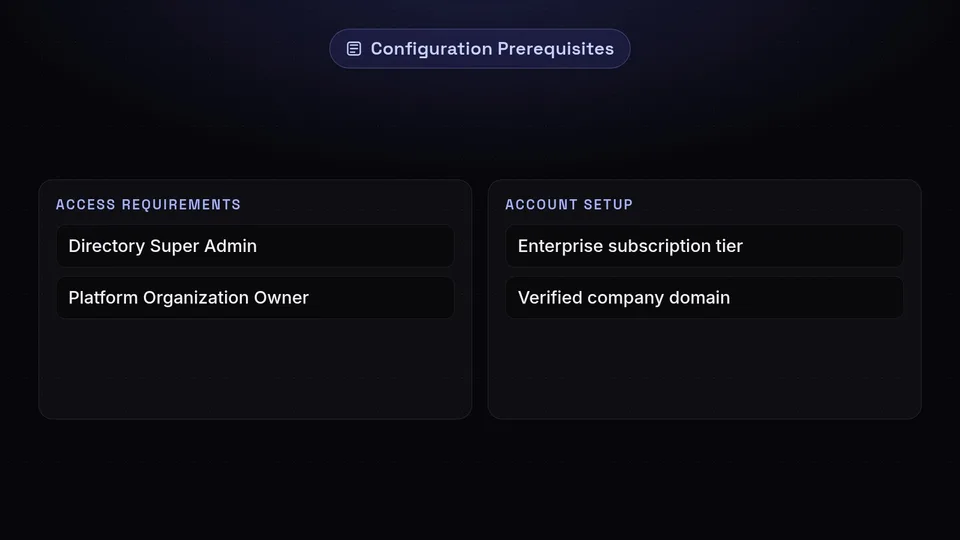
Before diving into the step-by-step configuration, ensure you have the following prerequisites in place. Attempting to configure SSO without these will result in errors.
- Google Workspace Super Administrator Access: You must have Super Admin privileges in your Google Workspace environment to create and configure custom SAML applications.
- SchedulifyX Enterprise Plan: Enterprise SSO is a premium feature. Ensure your SchedulifyX subscription is on the Enterprise tier.
- Verified Domain: Your company domain must be verified within your SchedulifyX Enterprise settings.
- Access to SchedulifyX Admin Settings: You need an active SchedulifyX account with 'Organization Owner' or 'Security Administrator' permissions.
Step-by-Step Tutorial: Configuration Guide
Configuring SAML-based SSO requires coordination between the Identity Provider (Google Workspace) and the Service Provider (SchedulifyX). Follow these steps carefully to establish a secure connection.
Step 1: Extract SchedulifyX SP Metadata
First, we need to gather the necessary configuration details from SchedulifyX to provide to Google Workspace.
- Log in to your SchedulifyX account as an Organization Owner.
- Navigate to Settings > Enterprise Security > Single Sign-On (SSO).
- Click on Configure New SSO Connection and select SAML 2.0.
- On the setup screen, locate the Service Provider (SP) Details section. You will need to copy two critical pieces of information:
- ACS URL (Assertion Consumer Service URL): This is the endpoint where Google will send the SAML response after a successful login.
- Entity ID (Audience URI): This is the unique identifier for your SchedulifyX organization.
- Keep this browser tab open; we will return to it shortly.
Step 2: Create a Custom SAML App in Google Workspace
Now, we will create the application profile within Google Workspace.
- Open a new browser tab and log in to the Google Admin Console using your Super Admin credentials.
- From the main dashboard, navigate to Apps > Web and mobile apps.
- Click the Add App dropdown menu and select Add custom SAML app.
- In the App Details step, enter a recognizable name, such as SchedulifyX Enterprise. You can also upload the SchedulifyX logo here to make it easily identifiable for your users. Click Continue.
Step 3: Download Google IdP Metadata
In this step, Google provides the details SchedulifyX needs to trust the authentication requests.
- On the Google Identity Provider details screen, you have two options for transferring the metadata. The most reliable method is to download the metadata file.
- Click the Download Metadata button. This will save an XML file to your computer containing Google's Entity ID, SSO URL, and the x.509 cryptographic certificate.
- Click Continue.
Step 4: Input SchedulifyX Details into Google Workspace
Now, we paste the details we copied from SchedulifyX in Step 1.
- On the Service Provider details screen, paste the ACS URL you copied from SchedulifyX into the ACS URL field.
- Paste the Entity ID into the Entity ID field.
- Ensure the Start URL is left blank (unless specifically instructed otherwise by SchedulifyX support for IdP-initiated login flows).
- Check the box for Signed Response. This ensures the entire SAML response is cryptographically signed, adding an extra layer of security.
- For Name ID format, select EMAIL.
- For Name ID, select Basic Information > Primary email. Click Continue.
Step 5: Map User Attributes
Attribute mapping ensures that SchedulifyX receives the correct user data (like names and roles) from Google Workspace during login.
- On the Attribute mapping screen, click Add Mapping.
- Map the following Google Directory attributes to the corresponding SchedulifyX App attributes:
- Basic Information > First name maps to firstName
- Basic Information > Last name maps to lastName
- Basic Information > Primary email maps to email
- Optional: If you are using Google Workspace groups to manage SchedulifyX roles (e.g., Admin, Editor, Viewer), you can map the Group membership attribute to the role attribute in SchedulifyX.
- Click Finish.
Step 6: Enable the App in Google Workspace
By default, newly created custom SAML apps are turned off for all users.
- On the SchedulifyX app page in the Google Admin Console, click on User access.
- Select the Organizational Units (OUs) or Groups that should have access to SchedulifyX.
- Change the Service status to ON for everyone (or ON for the specific groups you selected).
- Click Save. Note: It can take up to 24 hours for changes to propagate to all users, though it typically takes only a few minutes.
Step 7: Finalize Configuration in SchedulifyX
Return to the SchedulifyX browser tab you left open in Step 1.
- In the SchedulifyX SSO configuration screen, locate the Identity Provider (IdP) Details section.
- Upload the XML metadata file you downloaded from Google Workspace in Step 3. SchedulifyX will automatically parse the file and populate the IdP Entity ID, SSO URL, and x.509 certificate fields.
- Review the attribute mappings to ensure they match what you configured in Google Workspace.
- Click Save and Test Connection.
Step 8: Testing and Enforcing SSO
SchedulifyX will prompt you to authenticate via Google Workspace to verify the connection. If successful, you will see a green confirmation message.
Once the connection is verified, you have two options for enforcement:
- Optional SSO: Users can log in using either their traditional SchedulifyX password or Google Workspace SSO. This is recommended during a transition period.
- Enforced SSO (Strict Mode): Users must log in via Google Workspace. Traditional passwords are disabled. This is the recommended setting for maximum enterprise security. We advise communicating this change to your team before enabling Strict Mode.
Troubleshooting Common SSO Errors
Even with careful configuration, you may encounter issues during setup. Here are the most common SAML errors when connecting Google Workspace to SchedulifyX and how to resolve them.
Error 403: app_not_configured_for_user
This is the most frequent error encountered by Google Workspace users. It means the user attempting to log in has not been granted access to the SchedulifyX SAML app in the Google Admin Console.
Resolution: Go to the Google Admin Console > Apps > Web and mobile apps > SchedulifyX. Check the User access section and ensure the app is turned ON for the user's specific Organizational Unit or Group. Remember that propagation can take some time.
Error: Invalid SAML Response (Signature Verification Failed)
This error occurs when SchedulifyX cannot verify the cryptographic signature of the SAML response sent by Google. This is almost always caused by a mismatched x.509 certificate.
Resolution: Re-download the IdP metadata XML file from Google Workspace and re-upload it to SchedulifyX to ensure the certificates match perfectly. Ensure the certificate has not expired.
Error: User Not Found / Email Mismatch
If a user successfully authenticates with Google but SchedulifyX rejects the login, there is likely an issue with the NameID format or attribute mapping.
Resolution: Verify in Step 4 that the Name ID format is set to EMAIL and the Name ID is mapped to Primary email. Ensure that the user's Google Workspace email exactly matches the email address associated with their SchedulifyX account.
Infinite Redirect Loop
If the browser constantly bounces between Google and SchedulifyX without logging in, there is typically a mismatch in the ACS URL or an issue with the system clocks.
Resolution: Double-check that the ACS URL in Google Workspace exactly matches the one provided by SchedulifyX, including the `https://` protocol and any trailing slashes. SAML relies heavily on synchronized system clocks; ensure your network time protocols (NTP) are functioning correctly, though this is rarely an issue with cloud-managed IdPs like Google.
Best Practices for Enterprise Social Media Security
Implementing single sign-on is a massive leap forward, but it is only one component of a holistic enterprise security strategy. To fully secure your SchedulifyX environment, consider implementing these additional best practices.
1. Enforce Multi-Factor Authentication (MFA) at the IdP Level
SSO is only as secure as the identity provider. If a user's Google Workspace account is compromised, the attacker gains access to all connected SSO apps, including SchedulifyX. Therefore, you must enforce strict MFA policies within Google Workspace. We highly recommend hardware-based security keys (FIDO2/WebAuthn) over SMS-based 2FA, as SMS is vulnerable to SIM-swapping attacks.
2. Implement Role-Based Access Control (RBAC)
Do not grant administrative privileges to every user. SchedulifyX offers granular RBAC. Map your Google Workspace groups to specific SchedulifyX roles. For example, a "Social Media Interns" group in Google should map to a "Draft Only" role in SchedulifyX, requiring approval before content goes live.
3. Regularly Review Audit Logs
SchedulifyX Enterprise provides comprehensive audit logs detailing every login attempt, configuration change, and published post. Integrate these logs with your centralized Security Information and Event Management (SIEM) system. Regularly reviewing these logs can help detect anomalous behavior, such as logins from unexpected geographic locations, before a breach occurs.
4. Configure Session Timeouts
To protect against unauthorized access to unattended workstations, configure strict session timeout policies. SchedulifyX allows enterprise administrators to define how long an SSO session remains valid before requiring the user to re-authenticate with Google Workspace.
Conclusion
Securing your brand's digital voice requires more than just strong passwords; it requires a centralized, easily manageable, and highly secure authentication architecture. By connecting Google Workspace SSO to SchedulifyX, you are taking a definitive step toward safeguarding your enterprise social media operations against modern cyber threats.
You eliminate password fatigue, streamline employee onboarding and offboarding, and gain unparalleled visibility into who is accessing your critical communication tools. With the step-by-step instructions and best practices outlined in this guide, your IT and marketing teams can collaborate securely and efficiently.
Ready to elevate your social media security? Upgrade to SchedulifyX Enterprise today to unlock SSO, advanced RBAC, and AI-powered publishing designed for the world's most demanding brands.