How to Set Up Multi-Brand Management in SchedulifyX
SchedulifyX Team · April 21, 2026
Master multi-brand management with this comprehensive SchedulifyX tutorial. Learn to organize, schedule, and scale your brand management efforts seamlessly.
Introduction to Multi-Brand Management

Managing a single brand's social media presence is challenging enough. You have to maintain a consistent voice, post at optimal times, engage with followers, and analyze performance metrics. Now, multiply that effort by five, ten, or fifty. This is the reality for marketing agencies, enterprise organizations, and freelance social media managers who juggle multiple clients daily. Without a structured approach, multi-brand management can quickly devolve into a chaotic mess of mixed-up logins, accidental cross-posting, and diluted brand voices.
Welcome to our definitive SchedulifyX tutorial. If you are struggling with context switching or worrying about posting Client A's meme to Client B's corporate LinkedIn page, you are in the right place. SchedulifyX was built from the ground up with complex organizational structures in mind. In this comprehensive guide, we will walk you through exactly how to set up, optimize, and master multi-brand management using our AI-powered platform.
"Effective brand management is not just about posting content; it is about creating distinct, isolated, yet easily accessible ecosystems for every brand under your umbrella."
By the end of this tutorial, you will have a streamlined workflow that allows you to switch between brands with a single click, utilize AI trained specifically on each brand's unique voice, and generate isolated analytics reports that prove your ROI to stakeholders.
Why SchedulifyX is the Ultimate Tool for Brand Management

Before diving into the setup process, it is crucial to understand why SchedulifyX stands out in the crowded landscape of social media scheduling tools. Traditional platforms often treat multiple brands as an afterthought, forcing users to group disparate accounts into a single dashboard. SchedulifyX takes a fundamentally different approach.
True Workspace Isolation
In SchedulifyX, each brand lives within its own dedicated Workspace. This means that media libraries, analytics, connected accounts, and even AI configurations are completely isolated. This architecture prevents the dreaded "wrong account" posting errors and ensures absolute data privacy between clients.
AI-Powered Tone of Voice Profiles
One of the most difficult aspects of multi-brand management is maintaining distinct brand voices. A playful consumer brand sounds vastly different from a B2B financial institution. SchedulifyX allows you to create specific AI Tone of Voice profiles for each workspace. When you use our AI to generate captions, it automatically adapts to the active brand's persona.
Unified Yet Segmented Inbox
Community management across multiple brands can be exhausting. SchedulifyX offers a unified inbox that aggregates comments and messages across all your brands, but with powerful filtering tools that let you segment by brand, platform, or urgency.
Step 1: Creating and Organizing Your Workspaces
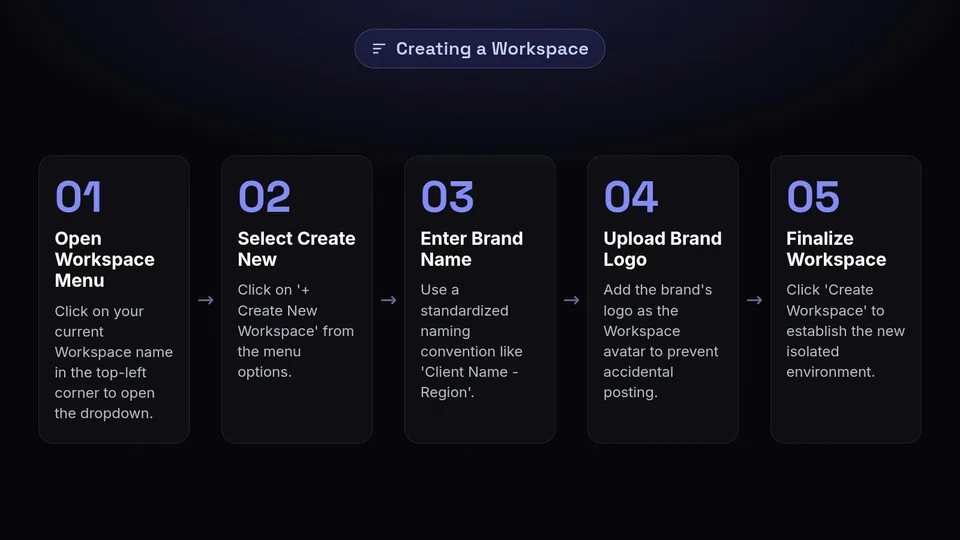
The foundation of effective multi-brand management in SchedulifyX begins with setting up your Workspaces. Think of a Workspace as a digital office building dedicated entirely to one specific brand.
How to Create a New Workspace
- Log in to your SchedulifyX dashboard.
- Navigate to the top-left corner of the screen and click on your current Workspace name to open the dropdown menu.
- Select + Create New Workspace.
- Enter the brand name. We recommend using a clear, standardized naming convention (e.g., "Client Name - Region" or "Brand Name - Primary").
- Upload the brand's logo as the Workspace avatar. This visual cue is vital for quick navigation and prevents accidental posting.
- Click Create Workspace.
Establishing a Naming Hierarchy
If you are an agency managing dozens of clients, organization is key. Use tags and folders within the Workspace manager to group related brands. For example, you might create a folder called "Healthcare Clients" and another called "E-commerce Clients." This hierarchical structure makes navigation seamless, even when your client roster grows into the hundreds.
Step 2: Connecting Social Media Accounts by Brand
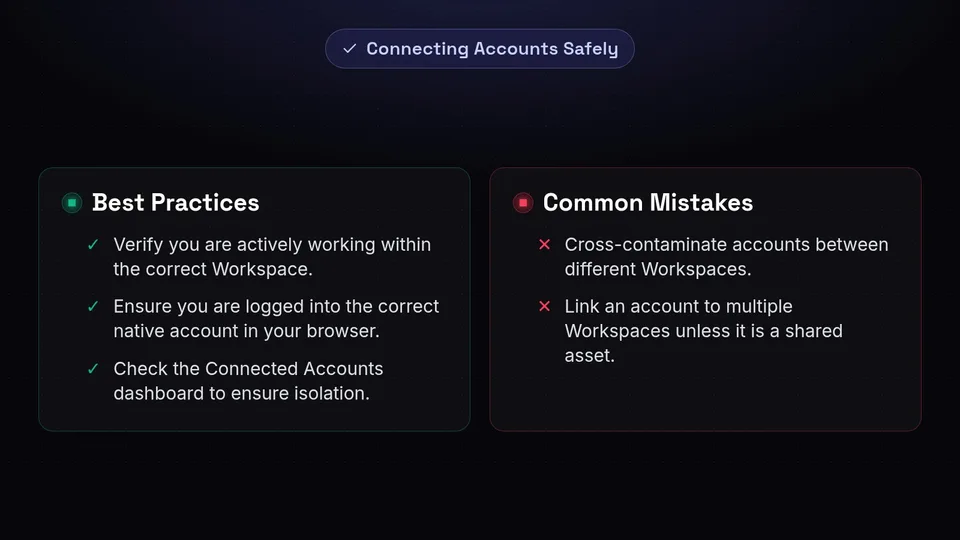
Once your Workspaces are established, the next step in this SchedulifyX tutorial is connecting the appropriate social media channels to each respective brand.
Connecting Platforms
To connect accounts, ensure you are actively working within the correct Workspace. Look at the top-left corner to verify the active brand.
- Navigate to Settings > Social Accounts.
- Click the + Connect Account button.
- Select the platform you wish to connect (Facebook, Instagram, X/Twitter, LinkedIn, TikTok, Pinterest, or YouTube).
- Follow the OAuth prompts to authorize SchedulifyX. Note: Ensure you are logged into the correct native social media account in your browser before authorizing.
Verifying Account Isolation
A critical best practice in multi-brand management is verifying that accounts have not been cross-contaminated. In SchedulifyX, a social media account can only be linked to one Workspace at a time unless explicitly configured as a shared asset (which is rare and usually reserved for parent/child company structures). Check the "Connected Accounts" dashboard in each Workspace to ensure only the relevant profiles are active.
Step 3: Setting Up User Roles and Permissions
Brand management is rarely a solo endeavor. You likely have copywriters, graphic designers, community managers, and clients who need access to the platform. SchedulifyX offers granular permission settings to keep your multi-brand environment secure.
Understanding SchedulifyX Roles
SchedulifyX provides several default roles, each designed for specific workflow needs:
- Workspace Owner: Has full administrative control over the Workspace, including billing and deleting the Workspace.
- Admin: Can connect/disconnect social accounts, manage all team members, and publish directly.
- Editor: Can create, edit, and publish posts, as well as reply to comments in the inbox. Cannot manage team members or billing.
- Contributor: Can draft posts and upload media, but requires an Admin or Editor to approve the post before it goes live.
- Client / Viewer: Can view the content calendar and analytics, and leave internal comments on drafted posts, but cannot edit or publish anything.
Inviting Team Members to Specific Brands
To invite a team member to a specific brand:
- Navigate to the desired Workspace.
- Go to Settings > Team Management.
- Click Invite Member.
- Enter their email address and select their Role.
- Click Send Invitation.
Pro Tip: Never give a user access to "All Workspaces" unless they are a senior agency director. Limiting access to only the necessary Workspaces minimizes the risk of human error and data breaches.
Step 4: Customizing Brand Assets and Media Libraries
A core component of successful brand management is visual consistency. SchedulifyX features isolated Media Libraries for each Workspace, ensuring that Brand A's assets are never mixed up with Brand B's.
Setting Up the Media Library
Navigate to the Media Library tab within your active Workspace. Here, you can upload images, videos, and GIFs. To keep things organized, create folders for different campaigns, product lines, or content pillars (e.g., "Q3 Product Launch", "Behind the Scenes", "User Generated Content").
Configuring the Brand Kit
SchedulifyX includes a built-in image editor and Canva integration. To maximize efficiency, set up the Brand Kit for each Workspace:
- Brand Colors: Input the exact HEX codes for the brand's primary and secondary color palettes.
- Typography: Upload custom fonts or select brand-approved Google fonts.
- Watermarks: Upload transparent PNG logos that can be automatically applied as watermarks to outgoing images.
By establishing a robust Brand Kit, your designers and social media managers can rapidly create on-brand graphics without leaving the SchedulifyX ecosystem.
Step 5: Training the AI Assistant for Multiple Brands
This is where SchedulifyX truly revolutionizes multi-brand management. Our AI Assistant isn't just a generic text generator; it is a highly customizable engine that learns and mimics the unique voice of every brand in your portfolio.
Creating a Tone of Voice Profile
To ensure the AI generates appropriate content for a specific brand, you must configure its Tone of Voice profile.
- Go to AI Settings > Tone of Voice within the brand's Workspace.
- Provide a Brand Summary: Write a 2-3 sentence description of what the brand does and who its target audience is.
- Select Tone Adjectives: Choose from our list of adjectives (e.g., Professional, Witty, Empathetic, Authoritative) or type your own.
- Provide Examples: This is the most crucial step. Paste 3-5 examples of the brand's best-performing social media captions. The AI will analyze these to understand sentence structure, emoji usage, and hashtag preferences.
- Set Rules: Add specific constraints, such as "Never use slang," "Always capitalize the product name," or "Limit emoji usage to one per post."
Using AI Prompts Across Brands
Once the Tone of Voice is set, you can use the AI Assistant in the post composer. When you type a prompt like "Write a promotional post for our new summer sale," the AI will automatically apply the active Workspace's Tone of Voice profile. You can switch to a different Workspace, use the exact same prompt, and receive a completely different, brand-appropriate response.
Step 6: Analyzing Multi-Brand Performance
Reporting is the lifeblood of brand management. Clients and stakeholders need to see the impact of your social media efforts. SchedulifyX provides both granular, brand-specific analytics and high-level cross-brand reporting.
Workspace-Specific Reports
Within a specific Workspace, navigate to the Analytics tab. Here you will find deep dives into audience demographics, engagement rates, optimal posting times, and top-performing content for that specific brand. You can schedule automated PDF or CSV reports to be sent directly to your clients on a weekly or monthly basis.
The Global Agency Dashboard
For agency owners overseeing multi-brand management, SchedulifyX offers a "Global Dashboard." This view aggregates high-level metrics across all your Workspaces. It allows you to quickly identify which brands are growing rapidly and which might need more strategic attention. You can sort Workspaces by total engagement, audience growth, or publishing volume.
Best Practices for Agencies and Enterprise Teams
To wrap up this SchedulifyX tutorial, let's explore some advanced best practices for mastering multi-brand management at scale.
1. Utilize the Content Approval Workflow
When managing multiple brands, quality assurance is vital. Utilize the "Contributor" role to force an approval workflow. This ensures that a senior strategist or the client themselves reviews every piece of content before it goes live, protecting the brand's reputation.
2. Leverage Cross-Workspace Cloning (With Caution)
If you manage franchise locations (e.g., 20 different regional accounts for the same restaurant chain), you can use SchedulifyX's "Clone Post" feature. Draft a post in the master Workspace, and push it to the regional Workspaces. However, always tweak the localized copy to maintain authenticity and avoid social network spam filters.
3. Standardize Your Tagging System
Create a standardized system for tagging posts (e.g., #Educational, #Promotional, #Culture) and apply it across all Workspaces. This allows you to run global reports to see if, on average, educational content performs better than promotional content across your entire client portfolio.
4. Regular Workspace Audits
Every quarter, perform an audit of your Workspaces. Remove team members who no longer need access, update the AI Tone of Voice profiles with recent top-performing content, and disconnect any obsolete social media accounts. Cleanliness is next to godliness in multi-brand management.
Conclusion
Mastering multi-brand management doesn't have to mean working longer hours or living in constant fear of making a cross-posting mistake. By leveraging the isolated Workspaces, granular permissions, and localized AI capabilities of SchedulifyX, you can scale your agency or enterprise operations with confidence.
This SchedulifyX tutorial has provided you with the blueprint for success. From setting up your initial Workspaces to training the AI on distinct brand voices, you now have the knowledge to build a robust, error-free social media machine. Brand management is an art, but with SchedulifyX, it becomes an exact science.
Ready to transform your multi-brand workflow? Log in to your SchedulifyX dashboard today and start building your first dedicated brand Workspace, or reach out to our support team to learn more about our advanced agency features.