SchedulifyX Developer API: Complete Step-by-Step Tutorial
SchedulifyX Team · April 24, 2026
Master the SchedulifyX Developer API with our comprehensive guide. Learn how to authenticate, automate scheduling, and pull analytics in this API tutorial.
In today's fast-paced digital landscape, automation is no longer a luxury; it is a fundamental requirement for scaling your social media strategy. Enter the SchedulifyX API. Whether you are a solo developer looking to build a custom internal tool, or an enterprise engineering team aiming to embed advanced social media scheduling capabilities into your proprietary CRM, mastering our developer API is your gateway to unparalleled efficiency.
This comprehensive api tutorial is designed to take you from absolute beginner to advanced integrator. By the end of this guide, you will have a deep understanding of how to leverage the developer api to automate posts, retrieve critical performance analytics, and synchronize data across your entire software ecosystem.
What is the SchedulifyX Developer API?
The SchedulifyX API is a robust, RESTful interface that allows developers to programmatically interact with the SchedulifyX platform. Built with modern architectural standards, it provides predictable, resource-oriented URLs, accepts form-encoded request bodies, returns JSON-encoded responses, and uses standard HTTP response codes, authentication, and verbs.
At its core, the developer api exposes the engine that powers the SchedulifyX dashboard. Anything you can do via our user interface—creating drafts, scheduling posts across multiple platforms (Twitter, LinkedIn, Facebook, Instagram, TikTok), managing media assets, and pulling detailed analytics—can be executed via the API.
Core Capabilities
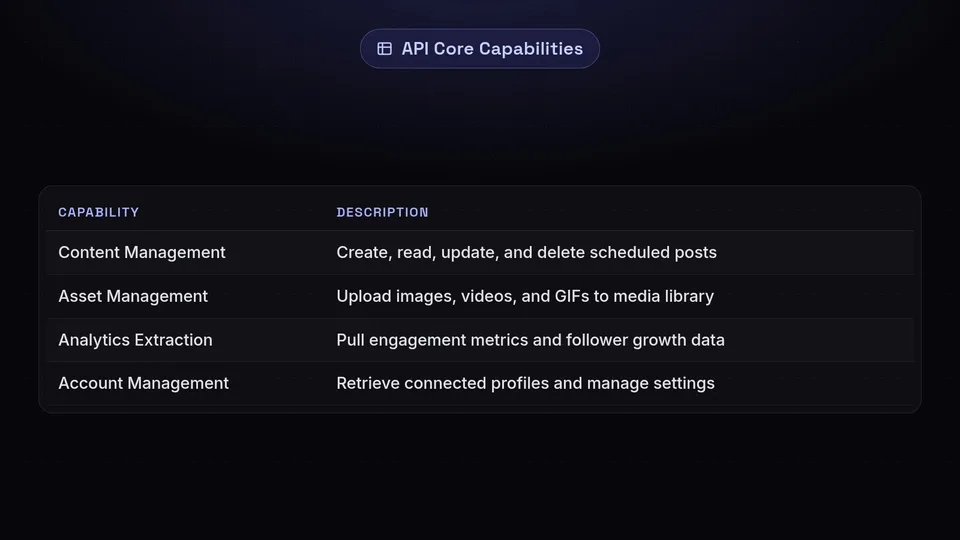
- Content Management: Create, read, update, and delete scheduled posts and drafts.
- Asset Management: Upload images, videos, and GIFs to your SchedulifyX media library.
- Analytics Extraction: Pull engagement metrics, follower growth data, and post-performance statistics.
- Account Management: Retrieve connected social profiles and manage workspace settings.
Why Build an Integration with SchedulifyX?

Building an integration with the SchedulifyX platform opens up a world of automated possibilities. While our native web application is incredibly powerful, every business has unique workflows. Here are the primary reasons engineering teams choose to build against our developer api:
1. Custom Content Pipelines
Many modern marketing teams use centralized headless CMS platforms (like Contentful or Sanity) or custom-built editorial calendars in Notion or Airtable. By building an integration, you can automatically push approved content from your CMS directly into the SchedulifyX scheduling queue, eliminating manual copy-pasting and reducing the risk of human error.
2. AI-Powered Automation
With the rise of Generative AI, developers are creating pipelines that automatically generate social media copy based on new blog posts or product launches. You can pipe this AI-generated content through the SchedulifyX API to maintain a consistent, automated posting schedule without manual intervention.
3. Unified Analytics Dashboards
If your company uses BI tools like Tableau, Looker, or PowerBI, logging into a separate social media tool for metrics creates data silos. Using our analytics endpoints, you can programmatically extract your social performance data and merge it with your sales and marketing data, creating a holistic view of your customer journey.
Prerequisites for this API Tutorial

Before we dive into the technical steps of this api tutorial, ensure you have the following prerequisites in place:
- A SchedulifyX Account: You will need an active account. API access is available on our Pro, Business, and Enterprise tiers.
- Basic Programming Knowledge: This guide will use general HTTP concepts. While examples can be translated to any language, a basic understanding of REST APIs, JSON, and HTTP headers is required.
- An API Testing Tool: We recommend having Postman, Insomnia, or simple command-line cURL ready to test endpoints before writing your application code.
Step 1: Generating Your API Keys
Security is our top priority. The SchedulifyX API uses API keys to authenticate requests. These keys carry many privileges, so be sure to keep them secure. Do not share your secret API keys in publicly accessible areas such as GitHub, client-side code, and so forth.
How to Generate Your Key
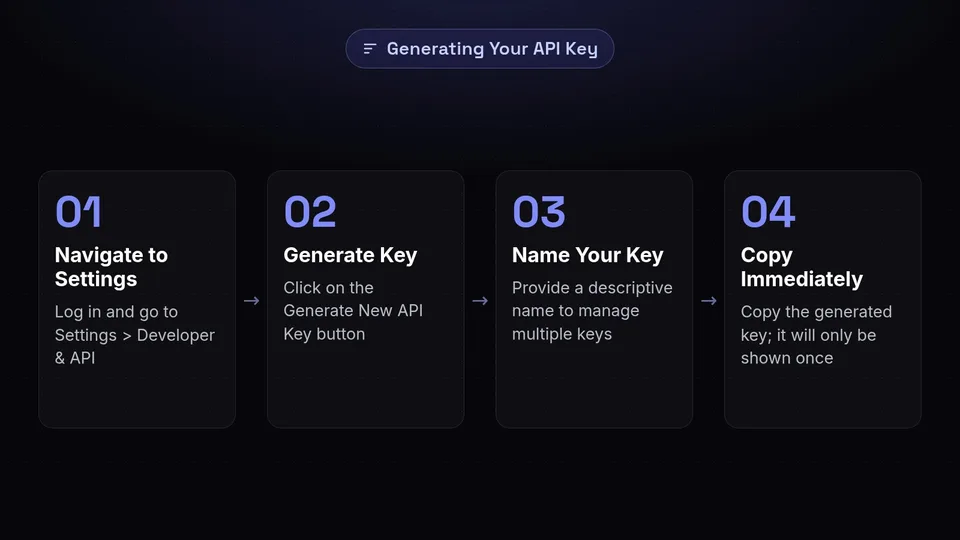
- Log in to your SchedulifyX dashboard.
- Navigate to Settings > Developer & API.
- Click on the Generate New API Key button.
- Provide a descriptive name for your key (e.g., "Internal CMS Integration" or "Analytics Dashboard"). This helps you manage multiple keys in the future.
- Copy the generated key immediately. For security reasons, we will only show you this key once. If you lose it, you will need to revoke it and generate a new one.
Security Tip: Always store your API keys in environment variables (.env files) or a secure secret manager like AWS Secrets Manager or HashiCorp Vault. Never hardcode them into your application logic.
Step 2: Authentication and Making Your First Request
With your key in hand, it is time to make your first request to the SchedulifyX API. We use Bearer authentication. You must include your API key in the Authorization header of every HTTP request.
The Authentication Header
Your HTTP header should look like this:
Authorization: Bearer YOUR_API_KEY
Testing the Connection
Let us verify that your integration is working by calling the /v1/users/me endpoint. This endpoint returns basic information about the authenticated workspace and connected social profiles.
Example cURL Request:
curl -X GET "https://api.schedulifyx.com/v1/users/me" \

-H "Authorization: Bearer YOUR_API_KEY" \

-H "Content-Type: application/json"
Understanding the Response
If your authentication is successful, you will receive a 200 OK response along with a JSON payload detailing your workspace ID, user details, and an array of connected social platforms with their respective internal IDs. You will need these social profile IDs for the next step: scheduling posts.
If you receive a 401 Unauthorized error, double-check that you have copied the API key correctly and that it hasn't been revoked in the dashboard.
Step 3: Scheduling a Social Media Post via API
The most powerful feature of the SchedulifyX API is programmatic scheduling. In this section of our api tutorial, we will walk through creating a post that goes out to multiple platforms simultaneously.
The /v1/posts Endpoint
To schedule a post, you will make a POST request to https://api.schedulifyx.com/v1/posts. The payload must be formatted as JSON.
Constructing the Payload
A standard scheduling payload requires the text content, the targeted social profile IDs, and a scheduled time (in ISO 8601 format). Here is a breakdown of the required fields:
- content (string): The text of your social media post.
- profile_ids (array of strings): The unique identifiers for the social profiles you want to publish to (retrieved in Step 2).
- scheduled_at (string): The UTC timestamp for when the post should be published. If omitted, the post will be saved as a draft.
- media_urls (array of strings, optional): Publicly accessible URLs of images or videos you want attached to the post.
Example Scheduling Request
curl -X POST "https://api.schedulifyx.com/v1/posts" \

-H "Authorization: Bearer YOUR_API_KEY" \

-H "Content-Type: application/json" \

-d '{

  "content": "We are thrilled to announce our new developer api integration! Check out our latest api tutorial to get started. 🚀",

  "profile_ids": ["prof_12345abc", "prof_67890xyz"],

  "scheduled_at": "2026-04-25T14:30:00Z",

  "media_urls": ["https://yourwebsite.com/images/api-launch.png"]

}'
Handling the Response
Upon success, the API will return a 201 Created status code. The response body will contain the newly created Post ID, which you should save in your database if you plan on updating or deleting the post later. The response will also confirm the exact scheduled time and the platforms targeted.
Step 4: Retrieving Post Analytics and Metrics
Publishing content is only half the battle; analyzing its performance is crucial. The SchedulifyX developer api provides granular access to your social media metrics, enabling complex data integration with your analytics stack.
The /v1/analytics Endpoint
To pull performance data, make a GET request to the analytics endpoint. You can filter the data using query parameters such as date ranges and specific profile IDs.
Query Parameters
- start_date (ISO 8601): The beginning of the reporting period.
- end_date (ISO 8601): The end of the reporting period.
- profile_id (string): Filter metrics for a specific social profile.
- metric_type (string): Specify what you want to retrieve (e.g., 'engagement', 'impressions', 'audience_growth').
Example Analytics Request
curl -X GET "https://api.schedulifyx.com/v1/analytics?start_date=2026-04-01T00:00:00Z&end_date=2026-04-24T23:59:59Z&metric_type=engagement" \

-H "Authorization: Bearer YOUR_API_KEY"
The JSON response will provide a time-series array of your data, making it incredibly easy to parse and feed into charting libraries like Chart.js or D3.js, or directly into your business intelligence tools.
Step 5: Handling Webhooks and Real-Time Updates
Polling an API continuously to check if a post was published successfully is inefficient and consumes your rate limits. Instead, a robust integration utilizes Webhooks.
SchedulifyX can send real-time HTTP POST payloads to a URL of your choosing whenever an event occurs within your workspace.
Setting Up Webhooks
In the SchedulifyX Developer Dashboard, you can register an Endpoint URL. You can subscribe to various events, such as:
- post.published: Triggered when a scheduled post successfully goes live on the native social network.
- post.failed: Triggered if a post fails to publish (e.g., due to an expired social token or network error).
- comment.received: Triggered when someone comments on one of your managed posts.
Processing Webhook Payloads
When an event occurs, SchedulifyX will send a POST request to your server. Your server should be prepared to parse the JSON payload, verify the webhook signature (to ensure the request genuinely came from SchedulifyX), and respond with a 200 OK status as quickly as possible.
Pro Tip: If your server takes too long to process the webhook and respond, SchedulifyX may assume the delivery failed and attempt to retry. Always acknowledge the webhook first, and then process the data asynchronously using a message queue like RabbitMQ or AWS SQS.
Best Practices for API Integration
To ensure your integration remains stable, scalable, and secure, adhere to the following best practices when working with the SchedulifyX developer api:
1. Respect Rate Limits
To guarantee high availability for all users, the SchedulifyX API enforces rate limiting. Standard accounts are limited to 100 requests per minute per IP address/API Key. If you exceed this limit, you will receive a 429 Too Many Requests response. Always check the X-RateLimit-Remaining header in our responses and implement exponential backoff in your application logic to handle 429 errors gracefully.
2. Implement Robust Error Handling
Network instability happens. Your code should anticipate and handle various HTTP error codes. Handle 4xx errors (client errors, like bad payloads or unauthorized keys) by logging the error and alerting your team. Handle 5xx errors (server errors) by implementing automatic retries with a backoff strategy.
3. Validate Media Before Uploading
When scheduling posts with media, ensure your images and videos meet the strict requirements of the target social networks (e.g., aspect ratios, file sizes, and formats). The SchedulifyX API will validate these upon submission, but pre-validating on your end saves API calls and speeds up your application's response time.
4. Keep Social Tokens Fresh
Social networks periodically expire the OAuth tokens that SchedulifyX uses to publish on your behalf. While SchedulifyX handles the renewal process where possible, some networks require manual re-authentication. Listen for the post.failed webhook with the reason token_expired so you can alert your users to log into the SchedulifyX dashboard and reconnect their profiles.
Conclusion and Next Steps
Integrating with the SchedulifyX API is a transformative step for any business looking to scale their social media operations. By following this api tutorial, you have learned how to securely authenticate, automate your content scheduling, extract deep analytics, and set up real-time webhooks for a seamless integration.
The possibilities of what you can build are virtually limitless. Whether you are piping AI-generated blog summaries directly to LinkedIn, or pulling granular engagement stats into your master CRM, the developer api provides the robust infrastructure you need.
Ready to start building? Log in to your SchedulifyX account today, navigate to the Developer settings, and generate your first API key. For deeper technical specifications, exhaustive endpoint definitions, and language-specific SDKs, be sure to bookmark and review our official API Documentation. Happy coding!